3 min to read
Peace APO, Handle Windows Audio Like a Pro.
A guide for those who don't care about damaging their speakers or ears 🌀

If you have ever played a movie or music at full volume and felt the volume was too low, you already know the classic trick. Open VLC, push the volume past 100%, sometimes all the way to 200%, and suddenly the dialogue becomes audible. It feels like a hidden cheat code.
The funny part is that most people stop there. They boost audio inside VLC and forget about the rest of the system. Every other app stays quiet: browser videos, system sounds, music players. What if that extra volume did not live only inside VLC?
Turns out, it does not have to.
The quiet truth about Windows audio
Windows is conservative with volume. That is not a bad thing; it protects speakers, headphones, and ears. But it also means that low-level audio stays low, even when you know your hardware can handle more.
Unlike my current setup of Arch + KDE, You should use Arch linux BTW. Windows does not expose a simple built-in option to push audio beyond 100% at the system level. So if you want that extra boost, you need the right tools.
That is where a small but powerful combo comes in:
Equalizer APO, the engine doing the heavy lifting
Equalizer APO is the real workhorse here. It is a system-wide audio processor that sits quietly between Windows and your sound output. Once installed, it affects all audio, browsers, media players, games, and everything.
It works at a very low level, which is why it is fast and efficient. No bloated interface, no flashy visuals, just pure audio processing power.
On its own, though, Equalizer APO is not very friendly. It is powerful, but not exactly inviting if you just want a louder sound without reading the documentation.
Peace, the friendly face of Equalizer APO
Peace is essentially a GUI for Equalizer APO. Think of it as a dashboard that makes all that power usable by normal humans. Yes, Equalizer APO is doing the heavy lifting. Peace simply gives you sliders, presets, and controls that make sense at a glance.
Once both are installed, Peace takes over the day-to-day interaction.
Pro Tip:
Install Equalizer APO first, then install Peace. During the setup, you’ll select which audio devices (like your speakers or headphones) you want the software to “control.”
1: Equalizer APO – Download here
2: Peace (GUI for Equalizer APO) – Download here
The setup, simpler than it sounds
After installing Equalizer APO and then Peace, there is very little you actually need to do. For most users, the magic lives in one place. And that is the main volume slider at the top of Peace.
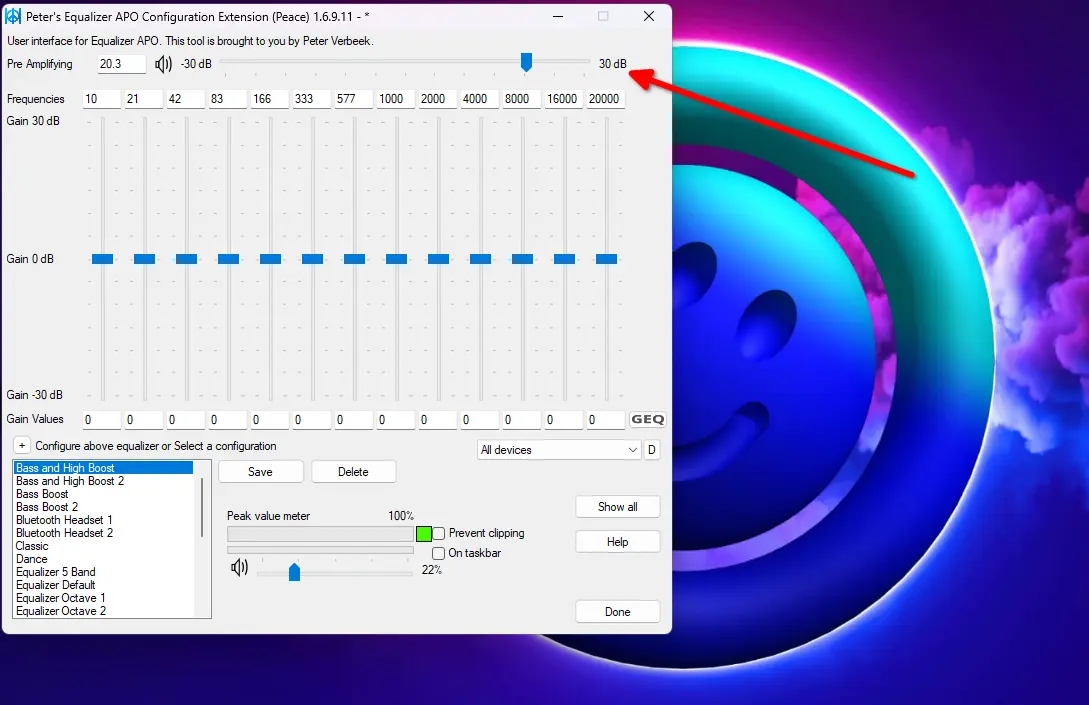
While drafting this post, I learned that PEACE is actually an acronym. It stands for Peter’s Equalizer APO Configuration Extension. Interesting! - Thank you, Peter.
Slide it up, and you get a clean volume boost across the entire system. No app-specific hacks. The boost applies everywhere.
Unless you are chasing very specific audio tuning, there is no need to touch advanced settings. Install once, set once, and forget about it.
That is the beauty of it.
More than just loud, real audio control
Peace is not only about volume. It also unlocks full equalizer controls.
You can tune bass, mids, and highs, adjust music profiles, or experiment with presets for different headphones and speakers. If you enjoy shaping sound, there is a lot to explore here.
The beauty of this setup is that it’s a “one-and-done” configuration. Install it once, slide one lever, and enjoy audio that finally matches your hardware’s potential.
Sometimes the best tools are the quiet ones, working in the background, making everything just a little better.
Stay Curious
Sham.

Leave a Comment