3 min to read
Top 5 Dolphin File Manager Tips.
Tabs are for web browsers, not file managers.
Dolphin is one of the most powerful and underrated file managers available, no cap. Over time, I’ve come across small tweaks that make my daily workflow smoother, faster, and more enjoyable. Here are my top five Dolphin tips that genuinely boost productivity.
1. Split View
Forget opening two separate windows just to drag and drop files. Dolphin’s Split View feature lets you divide a single window into two fully functional panels. Each panel can navigate independently, so you can copy, move, or compare files side by side. No more tab juggling.
Screenshot: Dolphin split view
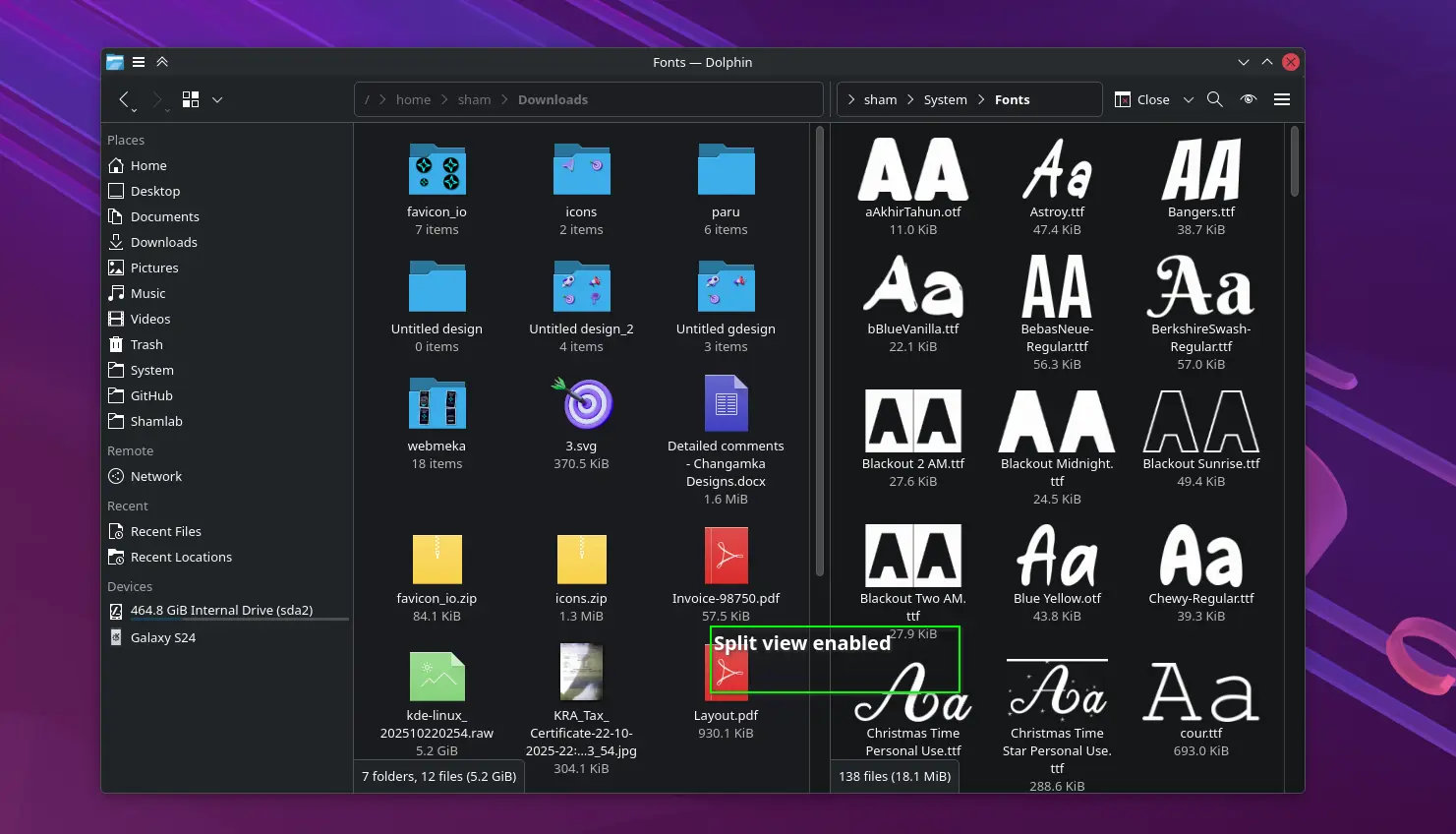 Once you try it, the tabbed view for files feels like juggling folders
2. Toolbar “Show/Hide” Button
With Dolphin’s toolbar customization, you can easily add a “Show/Hide” button (the little eye icon) to your main toolbar.
Click it once to reveal hidden files and again to hide them. You can also use the keyboard shortcutCtrl + H, but I find the eye icon way more convenient.
Screenshot: Dolphin toolbar with eye icon
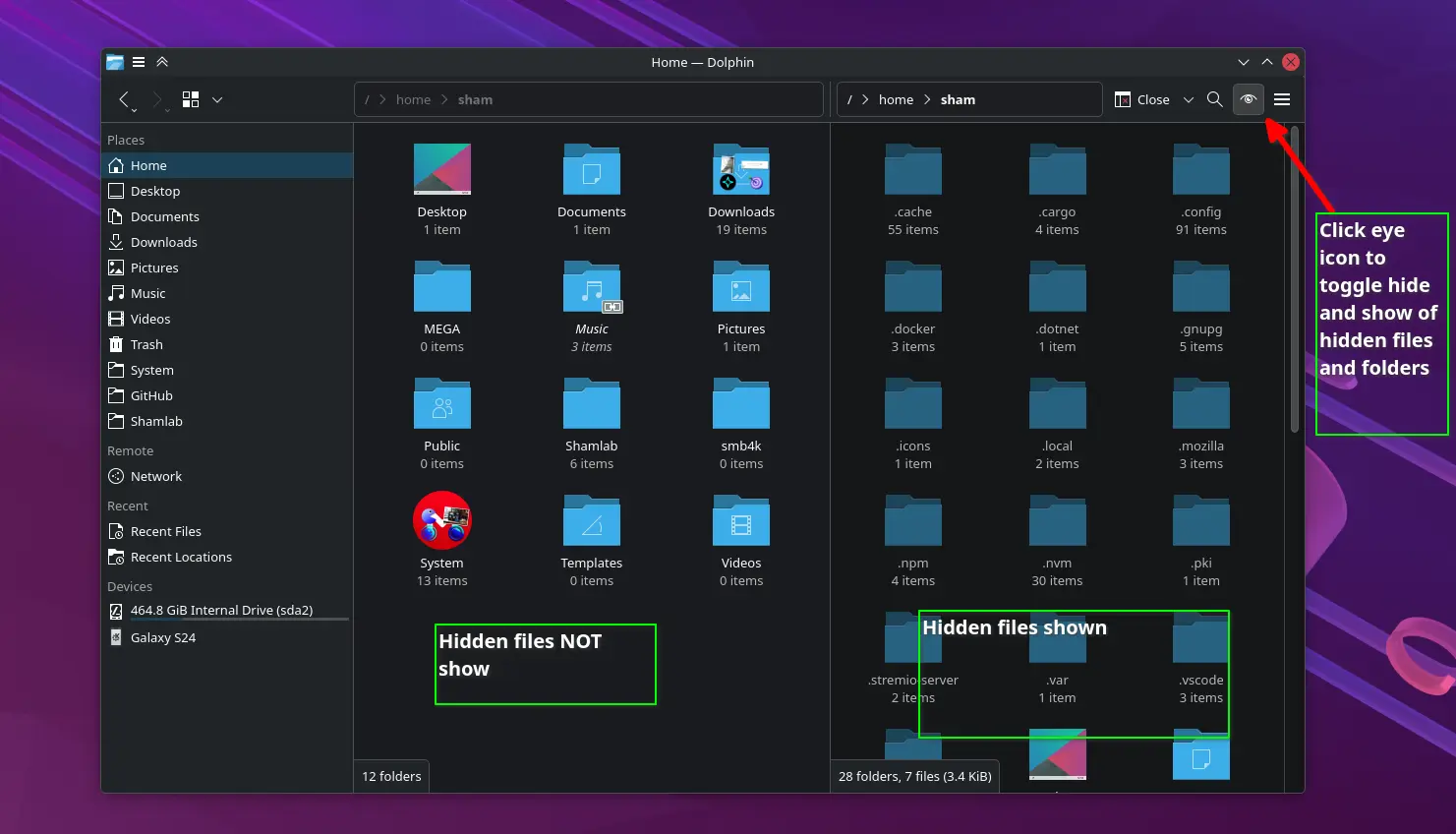 A tiny tweak, but once you get used to it, it’s hard to live without.
3. Show Additional File Information (Size)
Turn on file size information by going to menu options > more > view > Show Additional Information > size and enable size. Dolphin will display file size info for files and the number of items for folders.
Screenshot: Dolphin showing file sizes under filenames
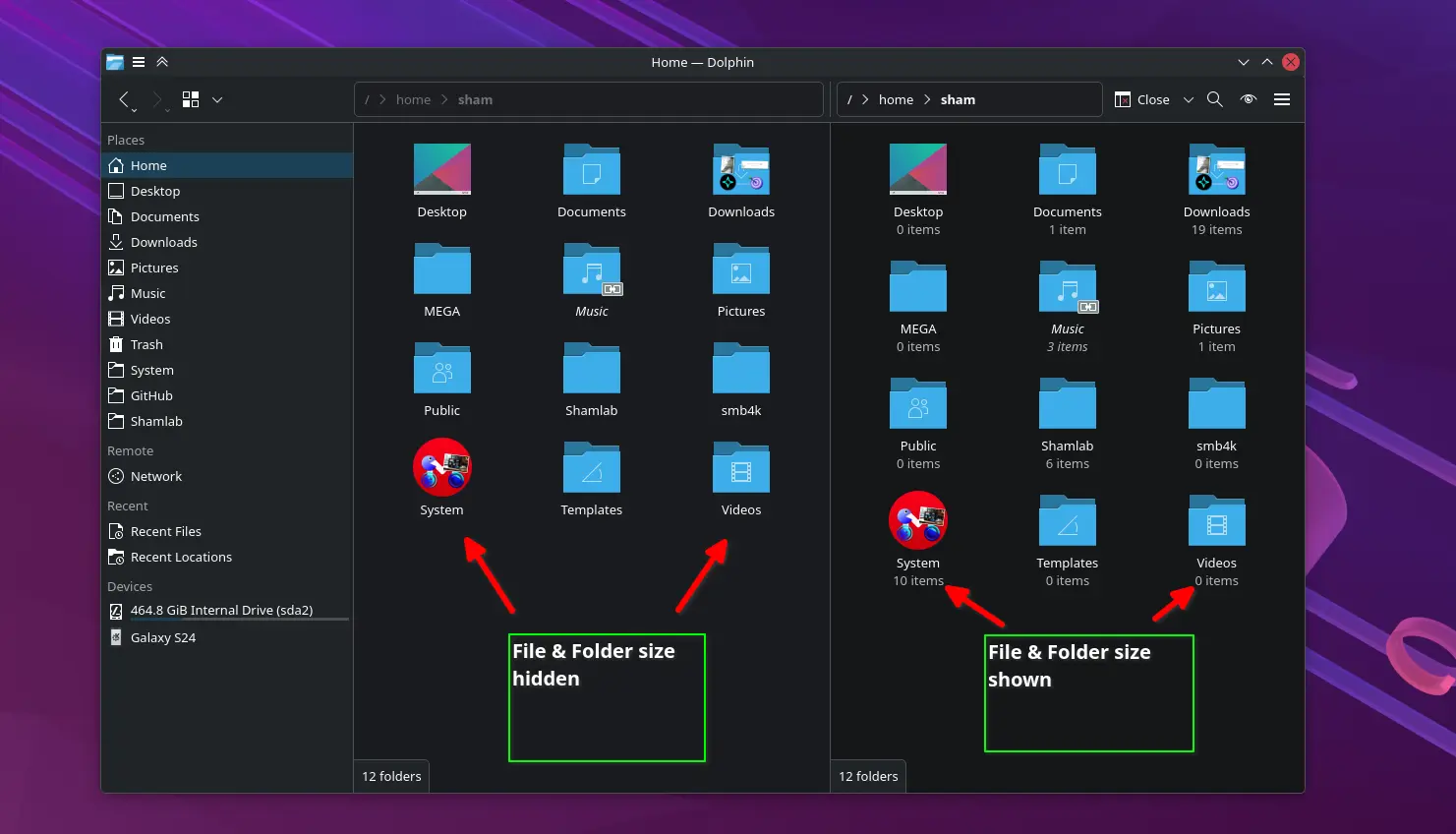 This small visual cue saves time when sorting or cleaning up directories, making it easier to spot large files or crowded folders at a glance.
A lifesaver when working with project folders
4. Making Use of “Linked” Folders
When you drag and drop files or folders, Dolphin gives you three options: Copy, Move, or Link.
Choosing Link creates a shortcut that looks like the original file/folder but doesn’t take up extra space. It’s incredibly useful when organizing projects or keeping synced folders across drives. Think of it as having the same file in multiple places without duplicating it.
Screenshot: Dolphin example of linked folder
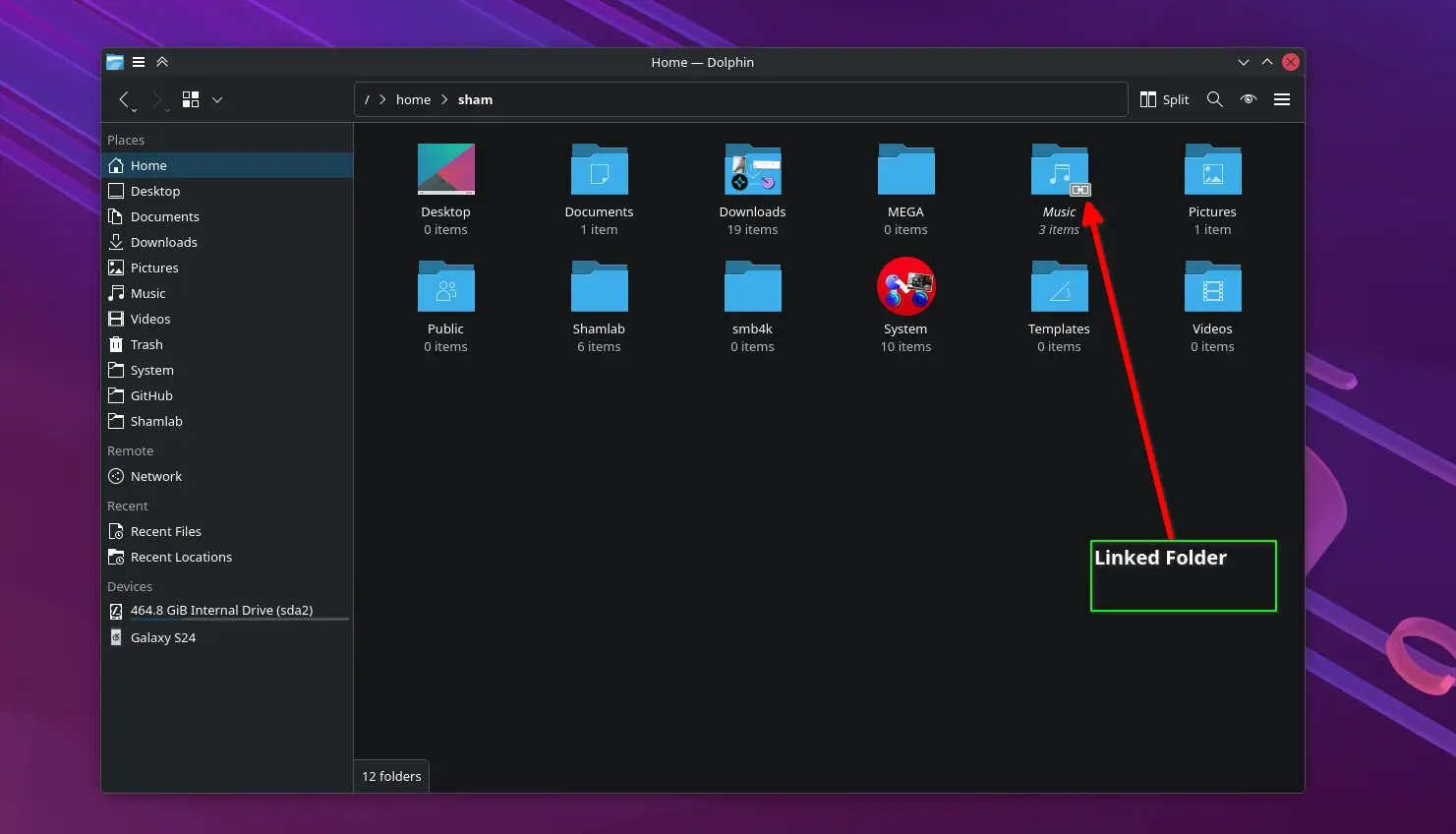 In the above example, I have linked my music folder to a music folder in cloud storage.
5. Dolphin Plugins (Especially 7-Zip)
With Dolphin, you can browse ZIP archives as if they were regular folders. But more can be done with plugins
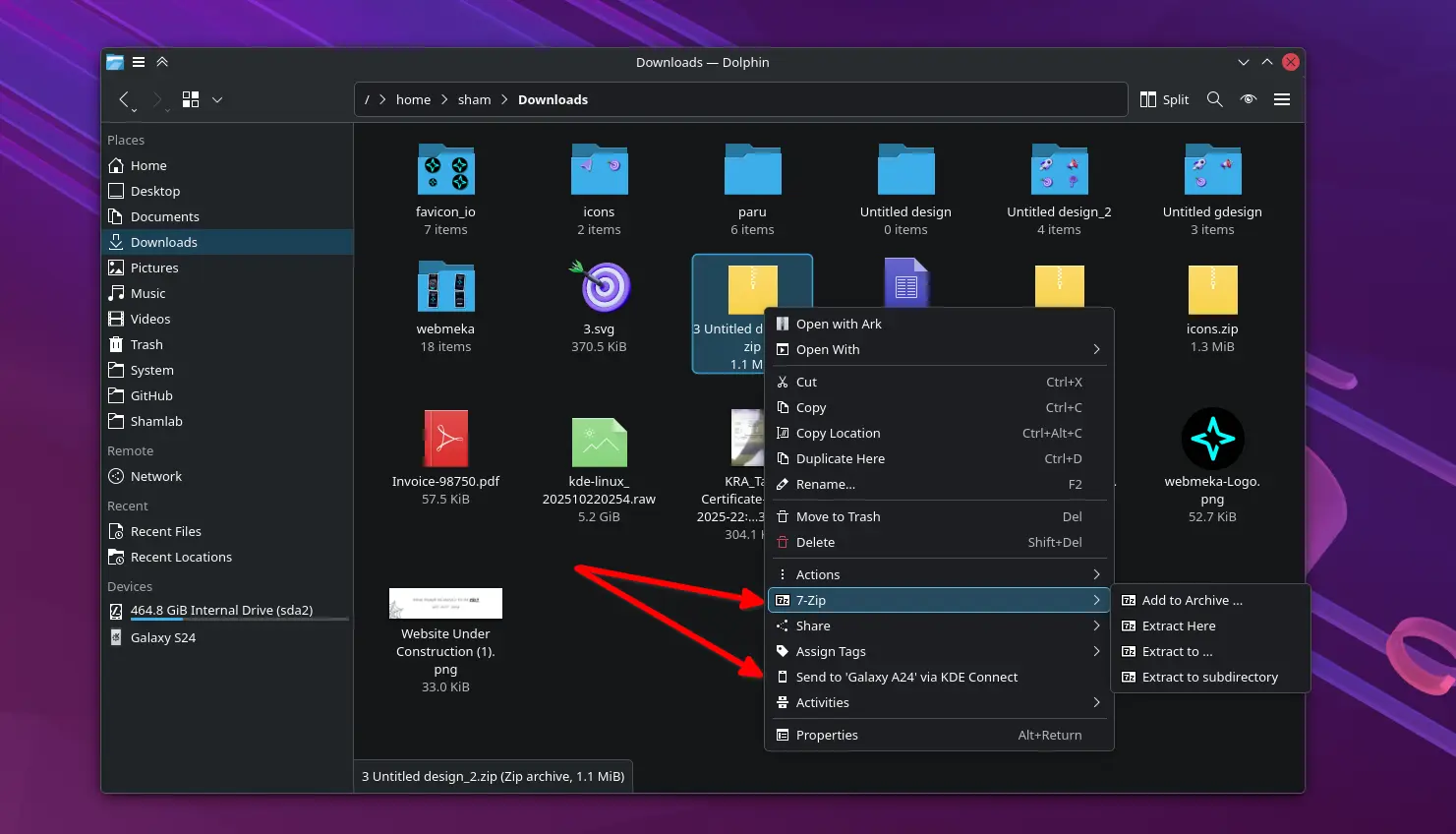
If you haven’t yet, install dolphin-plugins (available in AUR). These plugins unlock extra functionality like version control, disk usage analysis, and better archive handling.
My favorite plugins are
- 7-Zip plugin makes compressed files feel native.
- KDE Connect addon to share files to a connected phone.
Screenshot: Dolphin context menu with 7-Zip and KDE Connect options
Final Thoughts
Dolphin is more than just a file manager; it’s a power tool hiding in plain sight. With a few adjustments and plugins, it transforms into a highly efficient workspace. Try out these tips and you’ll see how much smoother file handling on Linux can be.
Stay Curious,
Sham.

Leave a Comment