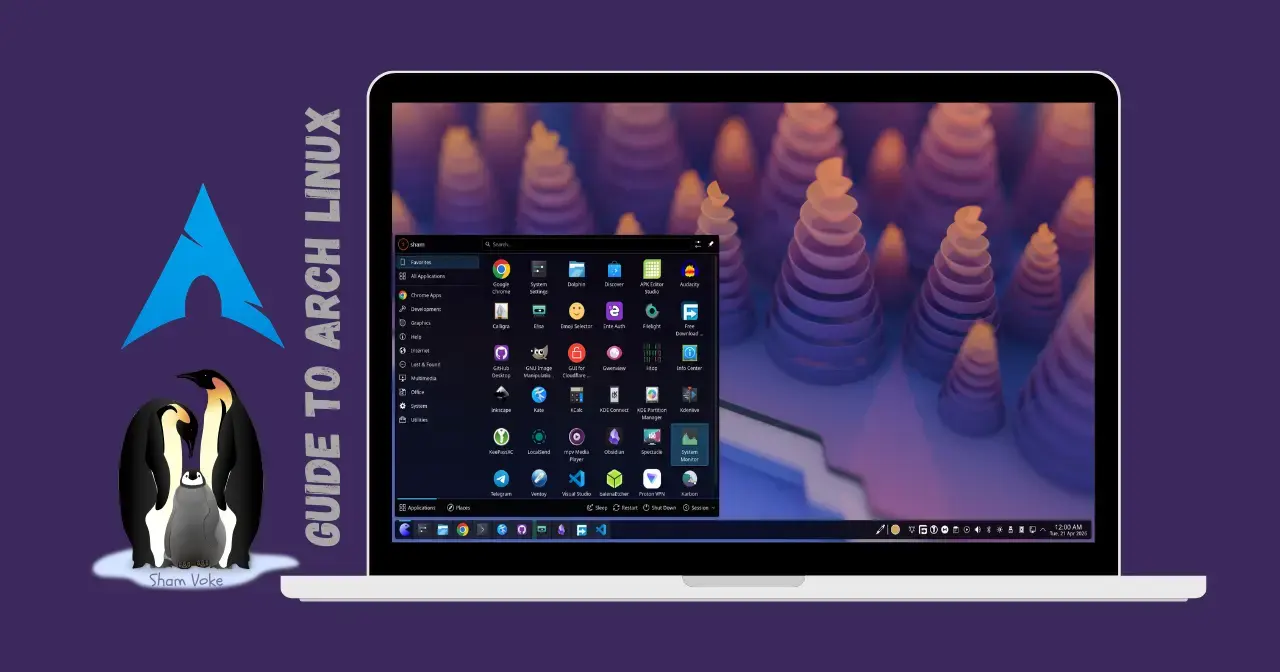
As promised from my previous Sham journey to Arch Linux post, here goes my step by step guide on getting Arch Linux up and running!
I highly recommend you check out the official installation guide on the Arch website. Mine is more of a personal guide. Meaning some steps are optional, and some are pure preference.
I repeat, if you are coming from windows, Distro Hopping is the initiation stage to Linux. Optional, but crucial!
Disclaimer
There are many ways to kill a rat, you could bomb it, shoot it, or just poison it. (If you ask me, there are also other solutions that don't involve killing the rat.)
Similarly, there are many ways to install Arch. You could go the manual way, use a script, install an Arch based Linux Distro, or use the super easy Archinstall.
We aren't here to argue which method is the best, just as in the example above the goal was getting rid of the rat, the goal here is to get Arch installed. Archinstall for the win.
🛠 Requirements
- A Backup: We aren't dual-booting. Backup your data to the cloud or an external drive.
- The ISO: Download from Arch website
- Ventoy: The best tool for bootable USBs. Get it at ventoy website
- A working brain: very important, reboot if necessary. Will come in handy in-case something goes south.
- Hardware: a working PC, a USB flash drive, and a stable internet connection.
Mirrors
On the download page, you’ll see "Mirrors." These are just servers globally hosting duplicate copies of the ISO. Think of them as copies of the official Arch server, if the main server updates, the mirrors update to reflect the changes... Mirrors they are indeed!
🚀 Pre-installation
- Brain Check: Confirm whether your PC uses BIOS or UEFI.
- Prepare the USB: Install Ventoy to your flash drive and simply copy the Arch ISO file onto it.
- Boot: Plug it in, boot from the USB, and select the Arch Linux image.
For ventoy install, choose between
MBRorGPTmode. I choose GPT. Stick to MBR if on BIOS only system.
Step 1 - Internet connection
If you're on a wired connection, you're already set.
If you're on Wi-Fi, type: iwctl (Follow the prompts to connect to your network).
Step 2 - Preparation (The optional "Cool" Tweaks)
First we do some settings, and no, there are no settings app to launch yet. We do settings the Linux way. By editing the config file directly. We are going to use nano text editor for that.
-
Enable Flair: This is just for looks and download speed.
- Run
sudo nano /etc/pacman.conf. - Find
#Colorand remove the#. (This makes your terminal text colored) - Add a new line:
ILoveCandy(This turns the progress bar into a Pac-Man character). - Uncomment
ParallelDownloadsand change it to8for faster installs. - To save your changes, press
Ctrl + O(the letter O, not zero) and then hit Enter to confirm the filename. - Exit the editor by pressing
Ctrl + Xto close nano and return to the command prompt.
- Run
Screenshot

-
Update Mirrors: We want the fastest servers. Lets install reflector for that
sudo pacman -Sy reflectorto install reflectorsudo reflector --protocol https --latest 5 --sort rate --save /etc/pacman.d/mirrorlistto update mirrors
Step 3 - Final boss (Archinstall)
Run archinstall to launch the Arch Linux guided installer.
Archinstall Screenshot
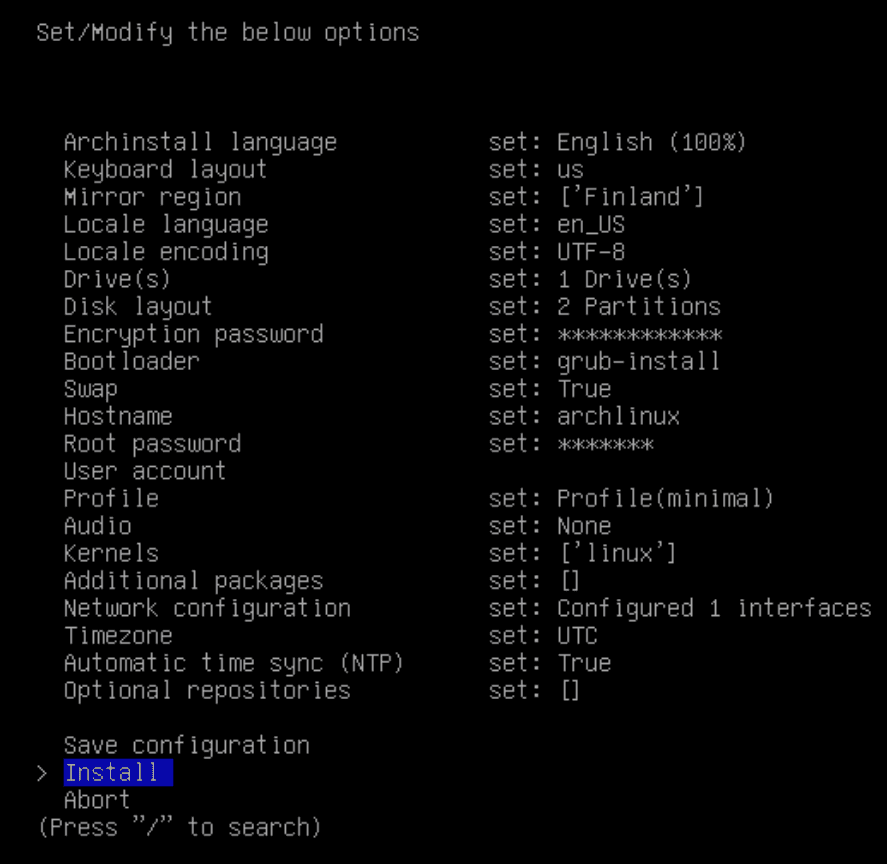
Let's cover each of those options one by one:
| Option | Selection / Recommendation |
|---|---|
| Archinstall language | Default (English) (SKIP) |
| Keyboard layout | Default (us)(SKIP) |
| Mirror region | We Already set this (SKIP) |
| Locale Language | Default (English)(SKIP) |
| Locale encording | Default (UTF-8)(SKIP) |
| Drive | Choose your target disk (check sizes carefully!) |
| Disk Layout | Choose Best effort partition layout and choose Separate /home folder |
| File System | Choose XFS (My preference) or EXT4 |
| Encryption password | Optional (SKIP) or I only use the user account password |
| Boot loader | Choose GRUB. It's the classic for a reason. |
| Swap | I prefer to set-up a swapfile after install. SKIP |
| Hostname | Name your PC this appears in your terminal & when connected to other devices |
| Root password | Enter password for your root user. |
| User Account | Create your user and make sure to choose Yes to sudo privileges |
| Profile | Select Desktop, then choose KDE |
| Audio | Choose pipewire |
| Kernels | Choose linux |
| Additional packages | we will install packages late SKIP |
| Network configuration | Choose Network Manager |
| Timezone | Optional, choose your Timezone or SKIP |
| Automatic time sync (NTP) | Optional, choose yes or SKIP |
| Optional repositories | Optional, try testing repo or SKIP |
Install
Hit install to start the installation process.
At this point, you are done, no further input required from you.
Archinstall will start downloading the packages for installation.
After installation is complete, you will be prompted whether you want to chroot, choose no
Now you can click reboot to boot to your new system!
🛠 Post-install
Time to do some setup.
Now that you have your system up and running, hopefully 😂😅 I mean, I didn't get it right the first time either. But trust me, 99.9% of the issues you encounter can be resolved by digging the Arch wiki.The remaining 0.01% just Google the error message or ask AI.
First, you'll want to install some packages. Good news is, you have access to the Arch User Repository AKA the AUR. An ocean full of open-source packages. No need to be a pirate!
Installing packages from AUR can be... a bit of a job. Thats why we are going to use a AUR helper
My favourite is paru.
To install paru, run: (Note I added rust as it is required to install paru)
sudo pacman -S --needed base-devel rust
git clone https://aur.archlinux.org/paru.git
cd paru
makepkg -si
To search for a package from the AUR with paru:
paru <package-name>
To install a specific package.
paru -S <package-name>
For example, to install google chrome browser
paru -S google-chrome
You can install multiple packages at once. Which mean you can install all your packages with one command!
Example
paru -S google-chrome firefox p7zip-gui warpgui-bin telegram-desktop-bin freedownloadmanager kdeconnect visual-studio-code-bin --noconfirm
While the packages are downloading, head over to System settings and setup your KDE to your liking. Stay tuned for a future update where I dig into a detailed KDE setup.
Next
Feel free to try out diffrent options. Like installing with linux-zen kernel, a diffrent Desktop Enviroment from kDE, with ZRAM on, and the vast options you could explore!
Now you use Arch, BTW!
Stay Curious,
Sham.