I have a confession.
I have way too many browser extensions.
Some are useful. Some are very useful. And a few have earned a permanent spot in my browser because they genuinely make browsing better.
So, instead of dumping my entire extension collection on you, I've picked a few that I actually use and would recommend to someone else.
Quick note: I use two browsers, each with its own set of tools. This list is my Chrome setup.
This isn't one of those "install these 25 extensions and become a productivity master" lists either.
You don't need all of them.
In fact, the goal is much simpler:
By the end of this list, I want you to discover at least one extension that makes you wonder how you ever browsed without it.
And we're not doing the usual "save the best for last" thing.
We're starting with the best.
1. Search & Link Preview
"You opened another tab, didn't you?" 👀
The search rabbit hole, you already know the drill.
- Search for something.
- Review the search results.
- Click one that looks promising.
- Scroll the page.
- No help.
- Back to the search results.
- Click another.
- Repeat...
And before you know it, you've got a browser window with enough tabs to qualify for a mini Wikipedia archive.
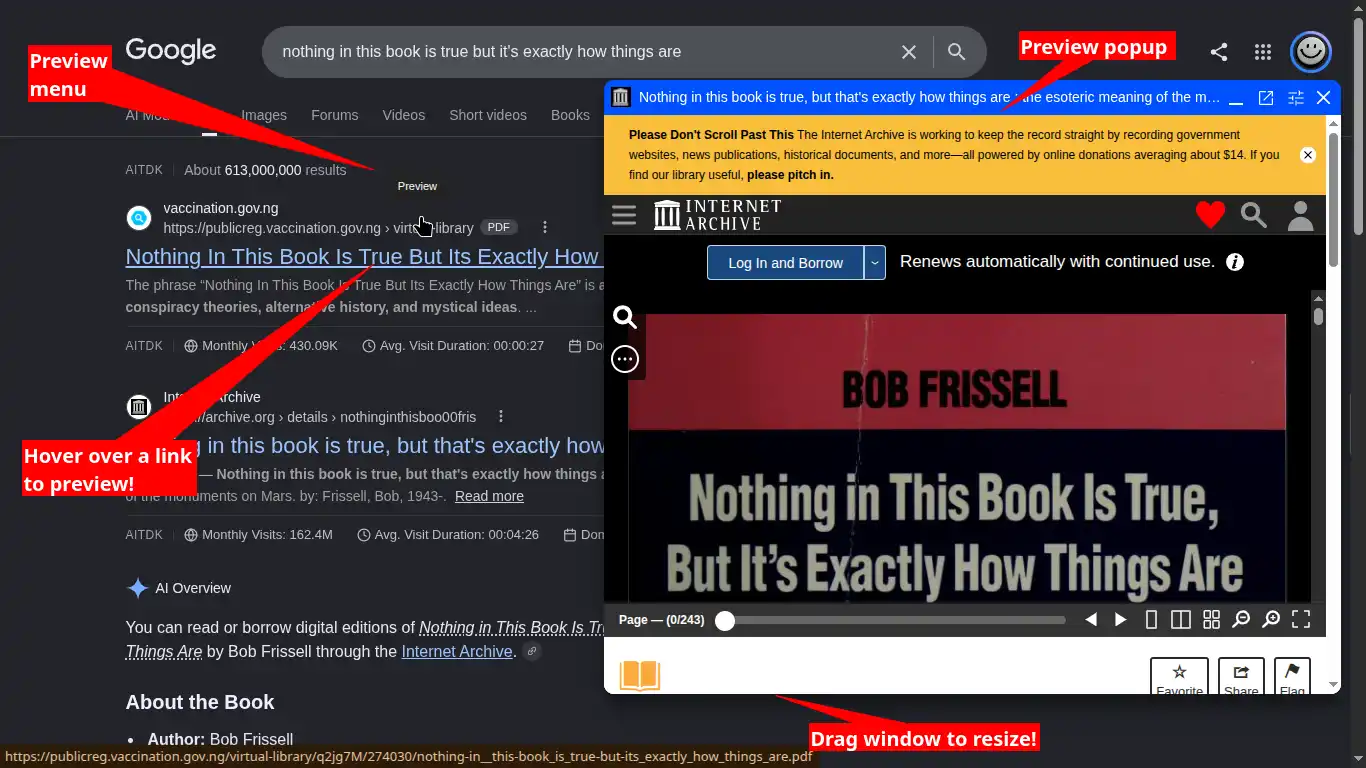
Search & Link Preview makes this process much less painful.
Instead of opening every link in a new tab, you can preview it in a popup window right from the search results page.
- Search for something.
- Open a search result in a popup.
- Not useful?
- Close the popup.
- Next result.
All without leaving the search page.
And when you finally find the result that actually solves your problem, you can open it in a new tab.
Boom!
No more tab archaeology.
And the best part is that it isn't limited to search results. You can also preview links before opening them from any webpage. 🔥
That's one of those small features that makes you wonder why browsers don't just do this by default.
Tip: No need to pin this one. It comes with a 'preview' menu every time you hover over a link.
2. SponsorBlock
YouTube, minus the parts you didn't come for.
Ah, this one is for YouTube.
Wait...
I thought the focus here was productivity?
Well, am I the only one enrolled at YouTube University?
Depending on what mood the algorithm is in, YouTube can absolutely be educational.
That's where SponsorBlock comes in.
It automatically skips sponsored segments in YouTube videos, so you can get straight to the good stuff.
No more:
"Before we get into today's video, this video is sponsored by..."
Skip.
And it does more than just sponsorships. Depending on how the video is marked up, it can skip things like intros, outros, subscription reminders, and other sections you might not care about.
Less filler.
That's a productivity improvement in my book.
And there's a particularly nice feature if you use YouTube for music.
SponsorBlock can skip sections with no audio. Super useful if you are just listening to the music but not watching the video.
3. GoFullPage
When a screenshot means the whole page.
This one comes in handy a LOT.
It's also a perfect example of an extension you can leave disabled until you actually need it.
GoFullPage lets you take screenshots of websites.
But we're not talking about the little rectangle currently visible on your screen.
It captures the full page.
Top to bottom.
The extension automatically scrolls through the page and stitches everything together into one long screenshot.
This is ridiculously useful when you need to save a webpage, share a design, document something, or simply capture a page without taking seventeen separate screenshots.
It's one of those extensions that can sit quietly disabled for weeks, then suddenly save you a ridiculous amount of time.
A must-have, this one.
4. Cookie-Editor
Take control of your cookies, no, not those cookies. 🍪😋
Okay...
Tread carefully.
Proceed with this one if you know what browser cookies are.
Cookie-Editor makes dealing with data stored by websites considerably easier.
Clearing cookies?
Easy.
But if you want to go beyond simply deleting them, things get interesting.
You can import and export cookies, inspect them, and even edit them.
I use it mostly to import and export cookies. 🫶
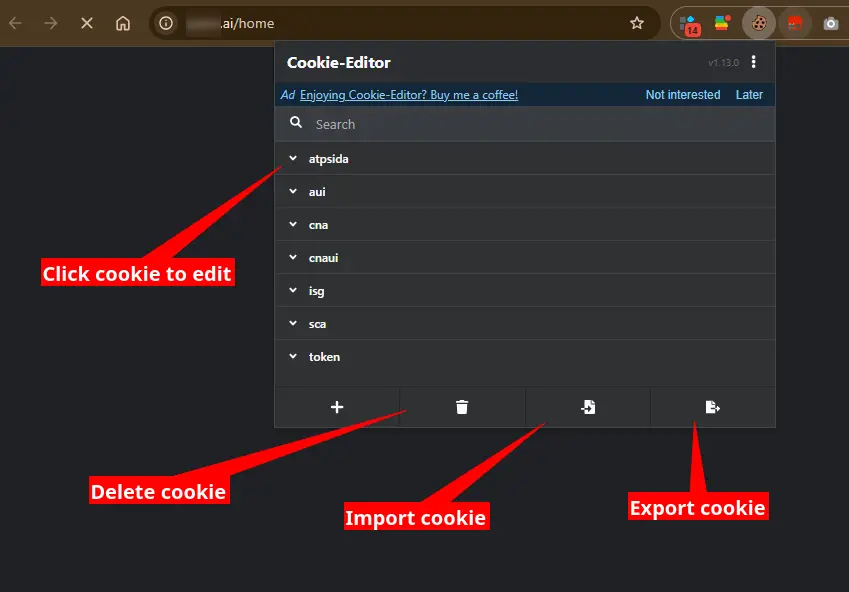
Just don't start editing random cookies because the button is there.
5. Extension Manager
"Because all those extensions were never going to manage themselves." 😂
Well, if you're going to have extra extensions, you better have a way to manage the mess.
The browser's default extension manager is okay.
And by okay, I mean it works.
Extension Manager is what you install when you want more than okay.
Its biggest selling point for me is simplicity. You can enable, disable, or uninstall extensions with a single click.
And that's actually more useful than it sounds.
Some extensions don't need to be running all the time. Maybe you only need them once every few weeks. Or when an extension is getting in the way of a particular website.
Disable it.
Need it again?
One click.
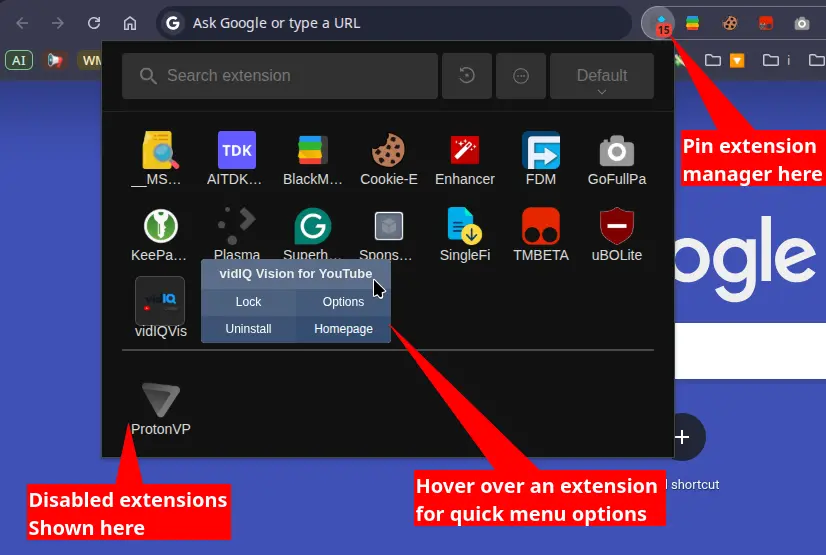
No digging through browser settings.
Bonus: A Few More Worth Keeping
I bet you have one of these already!
Okay, five is enough. But you still need...
AN AD BLOCKER
Let's be honest, the web can get a little noisy.
I use uBlock Origin Lite to keep intrusive ads, popups, and other unwanted clutter from taking over the pages I visit.
Quick tip: Whitelist creators and websites you love. If you enjoy their work, letting their ads through is a simple way to support them. 🏆
A DOWNLOAD MANAGER
If you download large files, multiple files, or just want a little more control over how your downloads are handled, a dedicated download manager is worth checking out.
I use Free Download Manager, and I've written about it before. Read the post here.
A PASSWORD MANAGER
If you're still relying on your memory, your browser, or that one password you've been reusing since 1906...
We need to talk. 😅
I use KeePassXC. I've also written a whole post about KeePassXC and why I switched to it. Find it here.
That's It
And that's the list.
For Web Developers... check out: AITDK SEO, super useful toolsets there mate. Weird name.
The rest of my browser extensions come and go.
If you have a browser extension that you think belongs on this list…
Drop it in the comment section.
Who knows? It might be the next extension I can't live without. 😅
And if this list helped you discover even one of those...
I'll take that as a win!
Stay Curious,
Sham.