I have a complicated relationship with ads.
I understand why websites have them. I understand why free apps have them.
But there is a difference between seeing an occasional advertisement and having your phone constantly trying to sell you something.
Ads appear on websites, in apps, games, and sometimes in places you never asked for them. And behind many of those ads are trackers, analytics systems, and third-party services quietly making network requests in the background.
For years, blocking ads on Android meant using a dedicated ad-blocking app, setting up a VPN-based blocker, or going down the rabbit hole of rooting your phone.
Turns out there is a much simpler solution.
See, your Android phone already has a feature called Private DNS.
And with the right DNS provider, that little setting can block a surprising amount of advertising and tracking across your device, without root, without modifying system files, and without installing an ad-blocking app. 🔥
So, how much of Android's advertising can you actually eliminate without rooting your phone?
Let's find out.
The problem
Android ads are everywhere.
The obvious place to encounter them is the web.
You open a news website and get a banner.
You open another site and get a popup.
You click download and suddenly the page is full of advertisements, recommendation widgets, and scripts you aren't even aware of.
Then you close the browser and open an app.
There's an ad.
You open a game.
Another ad.
Finished a level?
Here's another one.
And sometimes, the ads aren't even the worst part. They're accompanied by trackers and analytics services quietly making requests in the background, collecting information about how you use the app or website.
The problem isn't that advertising exists. Ads help keep websites, apps, and services free.
The problem is when advertising becomes intrusive enough that it gets in the way of actually using your phone.
That's where Private DNS comes in.
The easiest solution
You don't need to install anything.
You don't need root access.
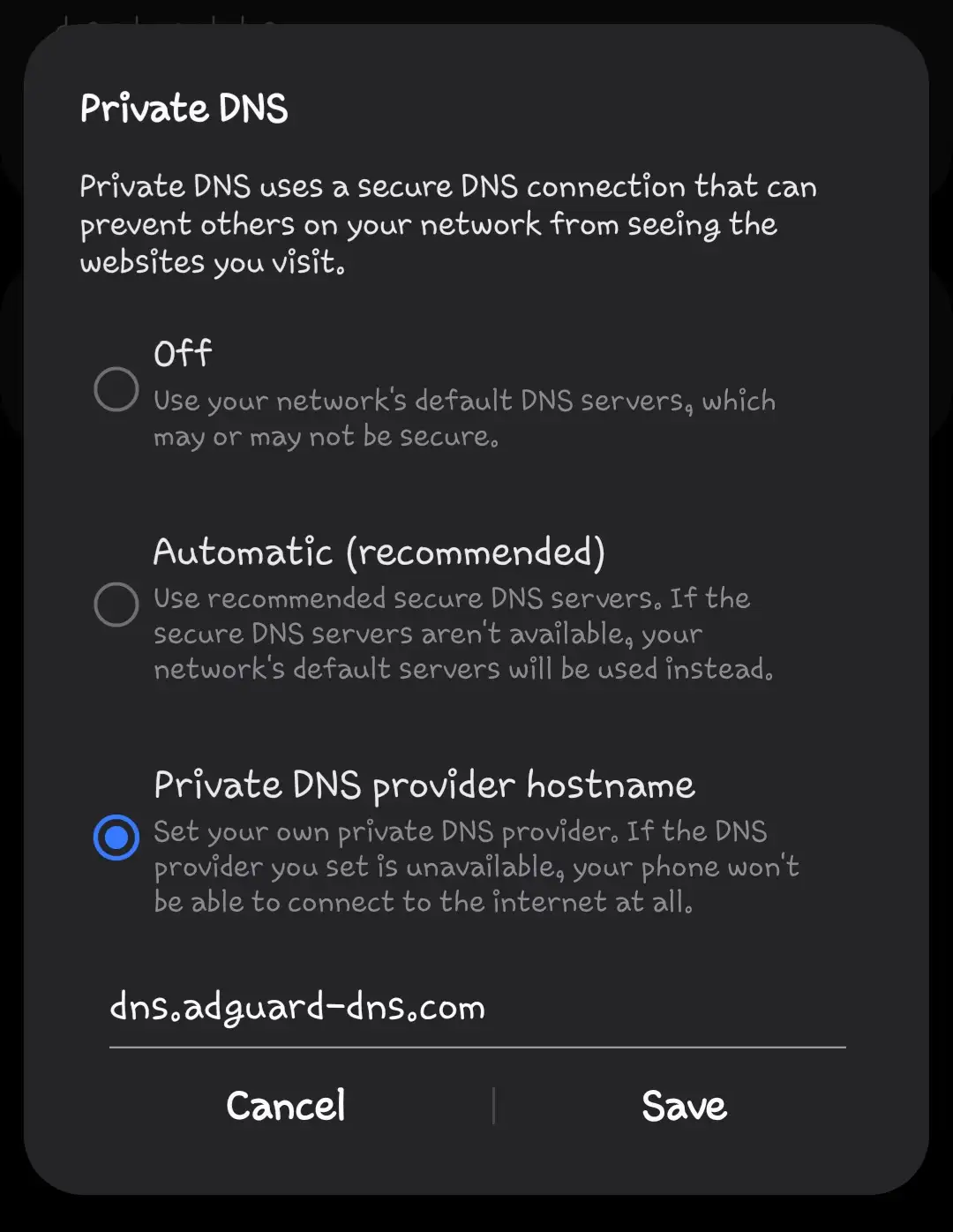
Open your Android Settings and search for Private DNS.
Depending on your phone, you may find it under Connections → More Connection Settings → Private DNS, or somewhere similar. Android manufacturers love moving things around, so using the Settings search is usually the fastest way to find it.
You'll see three options:
- Off
- Automatic
- Private DNS provider hostname
Choose Private DNS provider hostname.
Now enter:
dns.adguard-dns.com
Then tap Save.
That's it.
Seriously.
What Private DNS Can’t Block
Private DNS can block a lot of advertising, but there is a limit...
DNS filtering works by blocking known advertising and tracking domains. If an ad is served from the same domain as the content you actually want, DNS filtering can't simply remove the ad without potentially breaking the service itself.
That's why you'll still see ads in places like YouTube, and some ads or sponsored content on social media platforms.
So, if you enable AdGuard DNS and still see a few ads, don't assume it's broken. You've simply reached one of the limitations of DNS-based blocking.
YouTube is where this limitation becomes especially obvious.
Let's fix that next.
Going Beyond DNS
Private DNS gets you surprisingly far, but some services require a different approach.
YouTube is a good example. Its ads are delivered through infrastructure that also handles legitimate video content, making them difficult to block at the DNS level.
To go further, you'll need an app-level solution.
Personally, I've used YouTube ReVanced for years, but more recently switched to YouTube Morphe.
Note: Modified YouTube clients can disappear or stop working as YouTube changes its systems. ReVanced has already shown how quickly things can change, so don't assume any particular project will be around forever.
Morphe is what I'm currently using, and I'll cover how to install and set it up in a future post. For now, consider it an alternative worth researching rather than a permanent solution.
Ads blocked.
No root.
No complicated setup.
Just a quieter Android phone.
Sometimes, that's all you need.
Stay Curious,
sham.