There was a time when Android felt like the wild west.
Back when rooting your phone was almost a rite of passage.
If you've never heard of rooting, here's the simplest way to think about it. On Windows, you sometimes Run as Administrator to perform tasks that require elevated permissions. Linux has something similar called the root user. Since Android is built on the Linux kernel, rooting gives you access to those high level system control.
Being a root user on android unlocks a whole new world.
You'd spend hours on XDA Developers forums, unlocking bootloaders, flashing custom ROMs, experimenting with custom kernels, and trying out whatever new tweak the community had cooked up that week.
Root access opened doors Google never intended users to walk through.
And for me, that was the appeal.
The platform felt open, customizable, and entirely yours.
Fast forward to today, and things have changed.
Rooting is no longer as common as it once was. Banking apps complain. Security systems fight back. Device manufacturers lock things down harder than ever.
The days of flashing a new ROM every weekend are mostly behind us.
But while root access faded into the background, another powerful Android tool quietly remained.
Enter ADB.
What is ADB
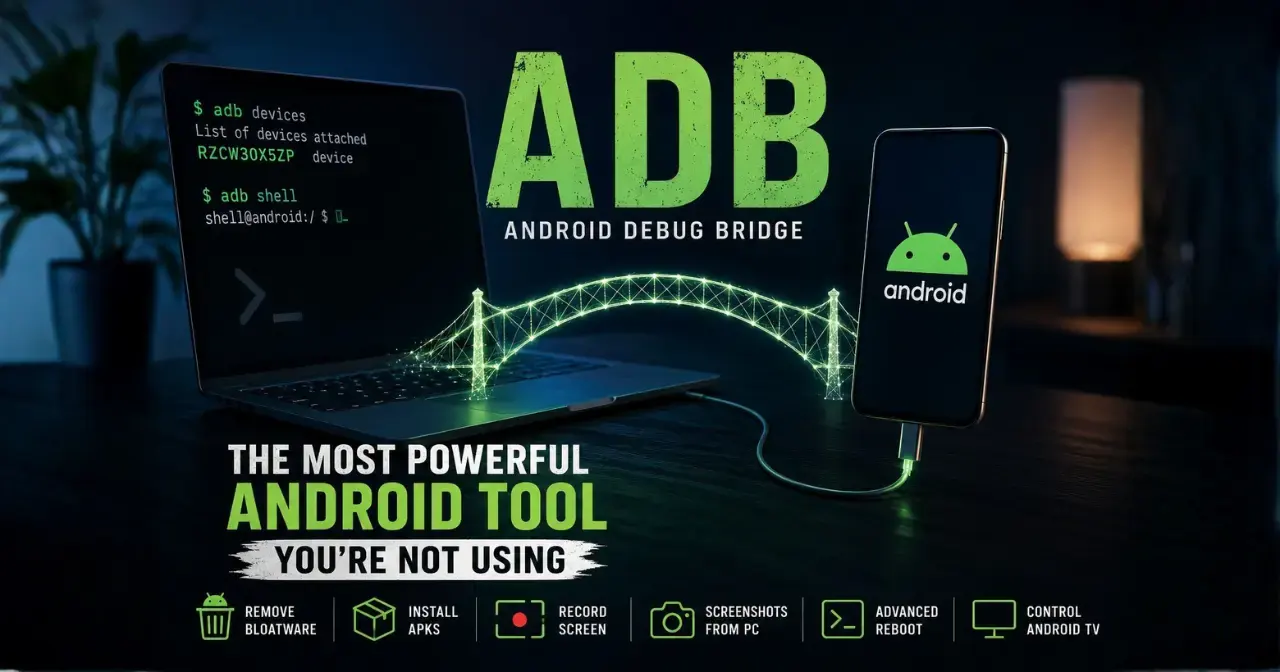
Think of it as a literal bridge between your computer and your phone. It allows you to send commands from your computer directly to your Android device through a command line interface.
Google originally designed ADB for developers testing Android applications.
But over the years, power users discovered that it could do much more than debugging.
Today, ADB has become one of the most useful tools available to Android enthusiasts.
Why Developers Use It
ADB was created primarily for Android developers.
As its name, Android Debug Bridge, suggests, its original purpose was to help developers test, debug, and communicate with Android devices during app development.
From installing test builds and viewing logs to troubleshooting issues, ADB includes far more features than we could possibly cover here.
Fortunately for us, many of those same tools are just as useful outside software development.
Why Regular Android Users Should Care
Here's the thing, you don't have to be an Android developer to use ADB. In fact, I'd argue that anyone comfortable following a few terminal commands can take advantage of it.
With ADB, you can:
- Uninstall unwanted preinstalled apps, no root required.
- Install APK files from your computer, even in bulk.
- Record your Android screen without installing extra apps.
- Capture screenshots directly from your computer.
- Advanced Reboot. Boot into Recovery, Bootloader, or Fastboot with a single command.
- Transfer files between your computer and Android device.
- View detailed device information, battery stats, and system properties.
- Grant special permissions to supported apps, such as Shizuku.
- Connect wirelessly over Wi-Fi, no USB cable needed.
- Control and manage Android TV and Google TV devices like a pro. 🔥
The list is endless... ADB makes many advanced Android tasks surprisingly simple.
It may look intimidating at first, but after your first few commands, you'll wonder how you ever lived without it.
Setting Up the Bridge
Before we run commands, we need to first install ADB onto your machine and secondly tell your phone to listen.
- Install ADB
-
Linux: You already know what to do here. Just hit the terminal:
sudo pacman -S android-tools -
macOS: If you use Homebrew:
brew install android-platform-tools -
Windows: Download the official
SDK Platform-Tools for WindowsZIP file from Google here, extract it to a folder (like C:\adb), and add that path to your Environment Variables so you can run it from any command prompt.
- Connecting Your Phone
-
On your phone, go to Settings > About Phone.
-
Tap Build Number 7 times until it says "You are now a developer!"
-
Go back to the main settings, find the new Developer Options menu, and toggle on USB Debugging.
-
Plug your phone into your PC via a USB cable.
-
A popup will appear on your phone asking to trust the computer. Check "Always allow" and hit accept.
Your First ADB Command
Let’s make sure everything is working.
First, connect your android device to your computer, then open your computer's terminal or command prompt and type:
adb devices
Hit enter, if everything is set up correctly, you’ll see a string of numbers followed by the word device.
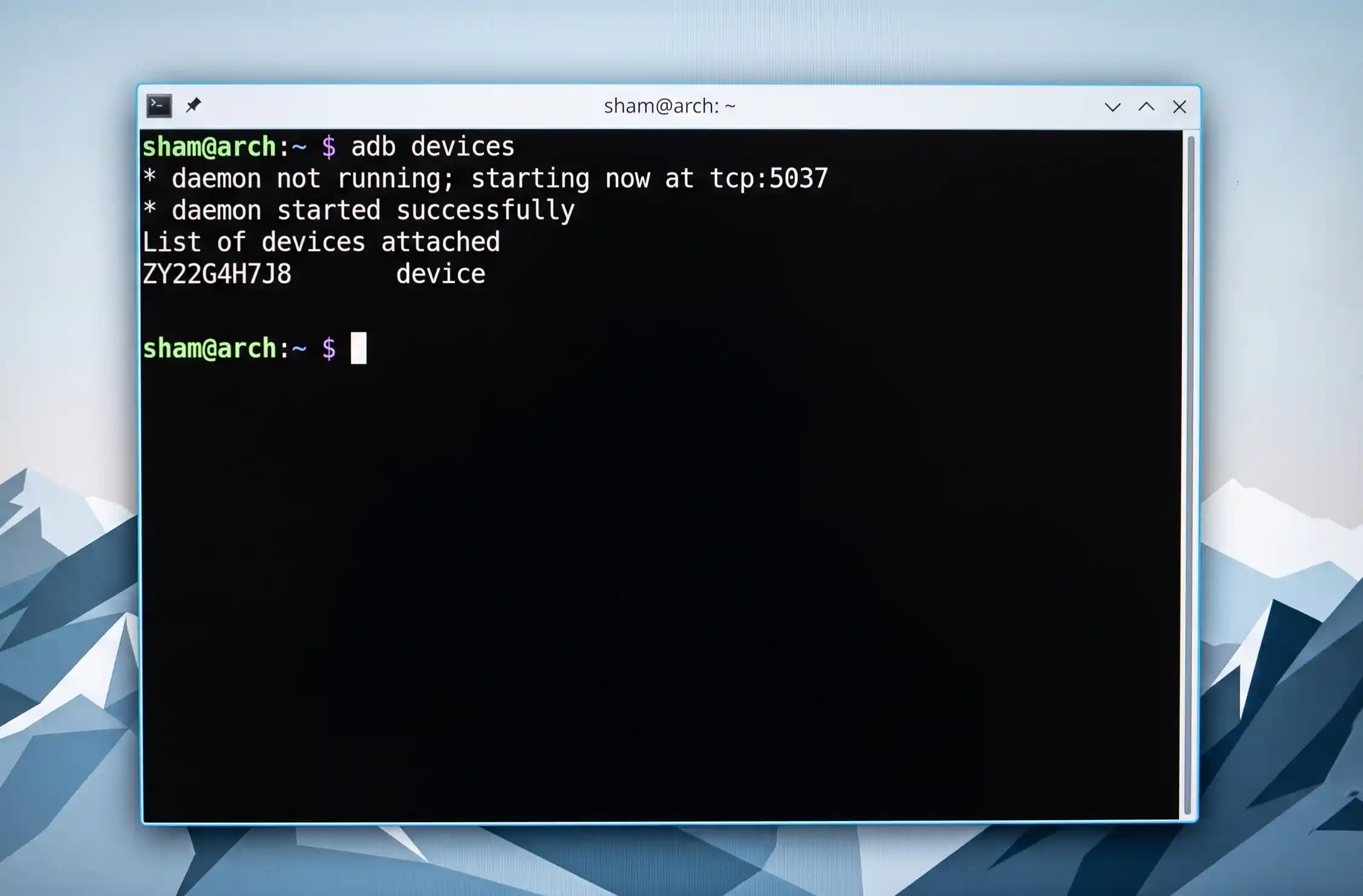
💡 Tip: If it says unauthorized, look at your phone screen, you forgot to accept that popup!
Useful Commands Everyone Should Know
Here is your starter pack of ADB magic:
- Uninstall Bloatware system apps
Tired of that pre-installed app you can't disable? Find its package name (using an app like Package Name Viewer) and run:
adb shell pm uninstall -k --user 0 com.example.bloatware Poof. Gone.
replace 'com.example.bloatware' with package name of the app you wish to remove
The app disappears from your user profile but remains in the system partition, meaning it can usually be restored later if needed. System apps will be restored if you do a factory reset.
- Transfer Files Fast
Need to transfer a large file or a folder to/from your phone without dealing with slow MTP file transfers? use adb push & adb pull
# Push - from PC to Phone
adb push movie.mp4 /sdcard/Movies/

# Pull - from Phone to PC
adb pull /sdcard/DCIM/Camera/ PC_Backup/
- Advanced Reboot
No more awkward finger gymnastics holding down Volume Down + Power while plugging in a cable: use adb reboot
# Reboot to recovery mode
adb reboot recovery

# Reboot to bootloader mode
adb reboot bootloader
- Check battery information
use adb shell adb shell dumpsys battery
- Install an APK
use adb install adb install app.apk
- Uninstall an app
use adb uninstall adb uninstall com.package.name
Bonus: Wireless ADB & TV
This is where things start getting fun! Android 11+ lets you pair ADB devices wirelessly.
One of the coolest things many people don't realize is that ADB isn't limited to phones...
Most Android TV boxes, Google TV devices, and streaming sticks support it as well.
Once connected, you can:
- Install APK files remotely
- Remove unwanted apps 🔥
- Access shell commands
- Transfer files & folders 🔥
- Troubleshoot performance issues
- Sideload applications not available in the Play Store 🔥
The list goes on and on.
If you own an Android TV device, ADB opens an entirely new toolbox.
Final Thoughts
Root access may no longer dominate Android the way it once did.
The days of flashing ROMs at 2 AM and spending weekends hunting for stable kernels are mostly gone.
But Android never completely lost its power user spirit.
ADB quietly carried that torch forward.
It's not root.
But it's close enough.
Half a cake is better than no cake... right?
And if you've never used it before, today might be the perfect time to start.
Stay Curious,
Sham.